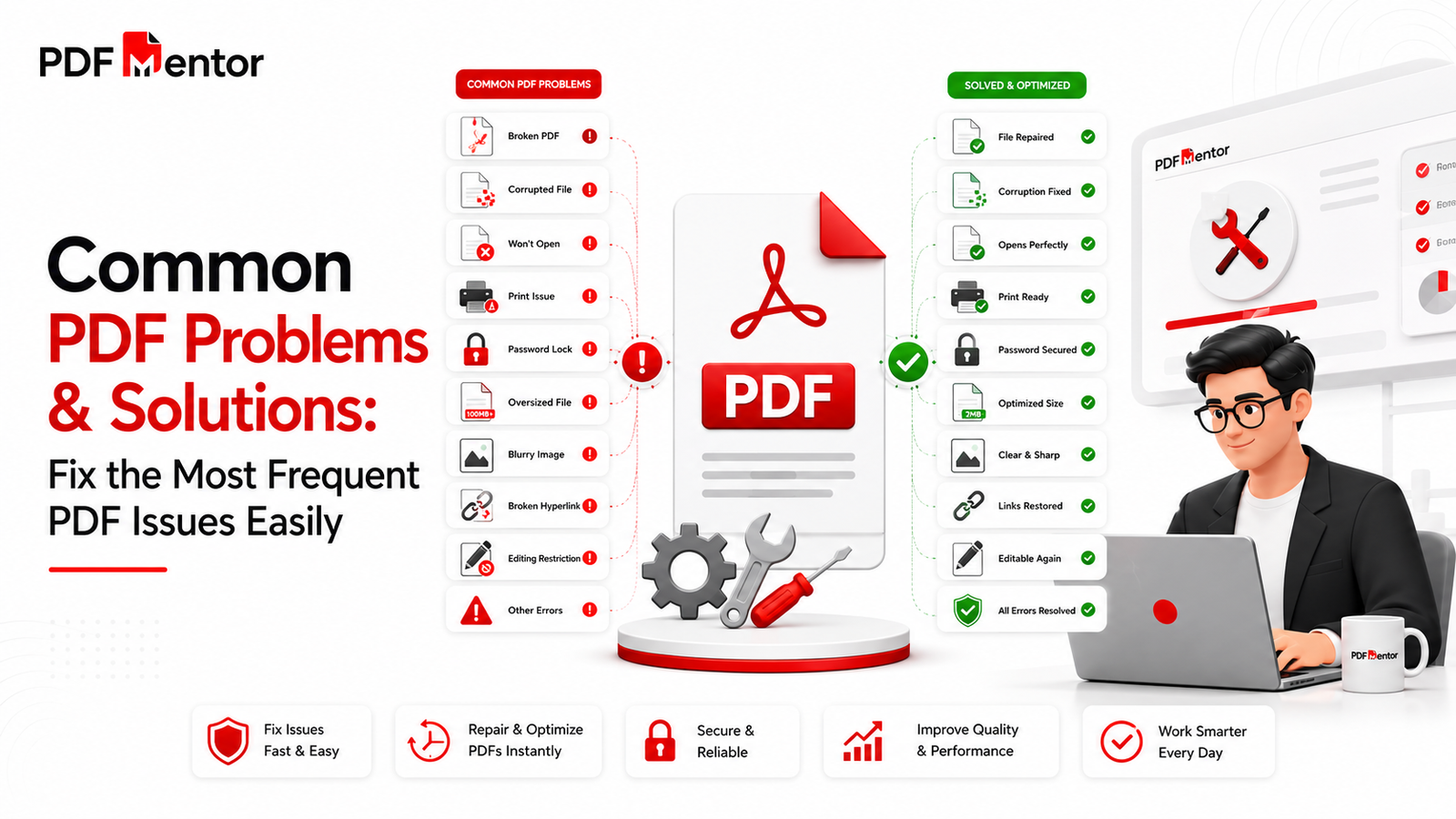
Portable Document Format (PDF) files have become the global standard for sharing digital documents. Whether you’re sending a business proposal, legal contract, invoice, school assignment, eBook, or resume, PDFs ensure that your content looks the same on every device and operating system. This consistency is one of the biggest reasons why millions of people rely on PDF files every day.
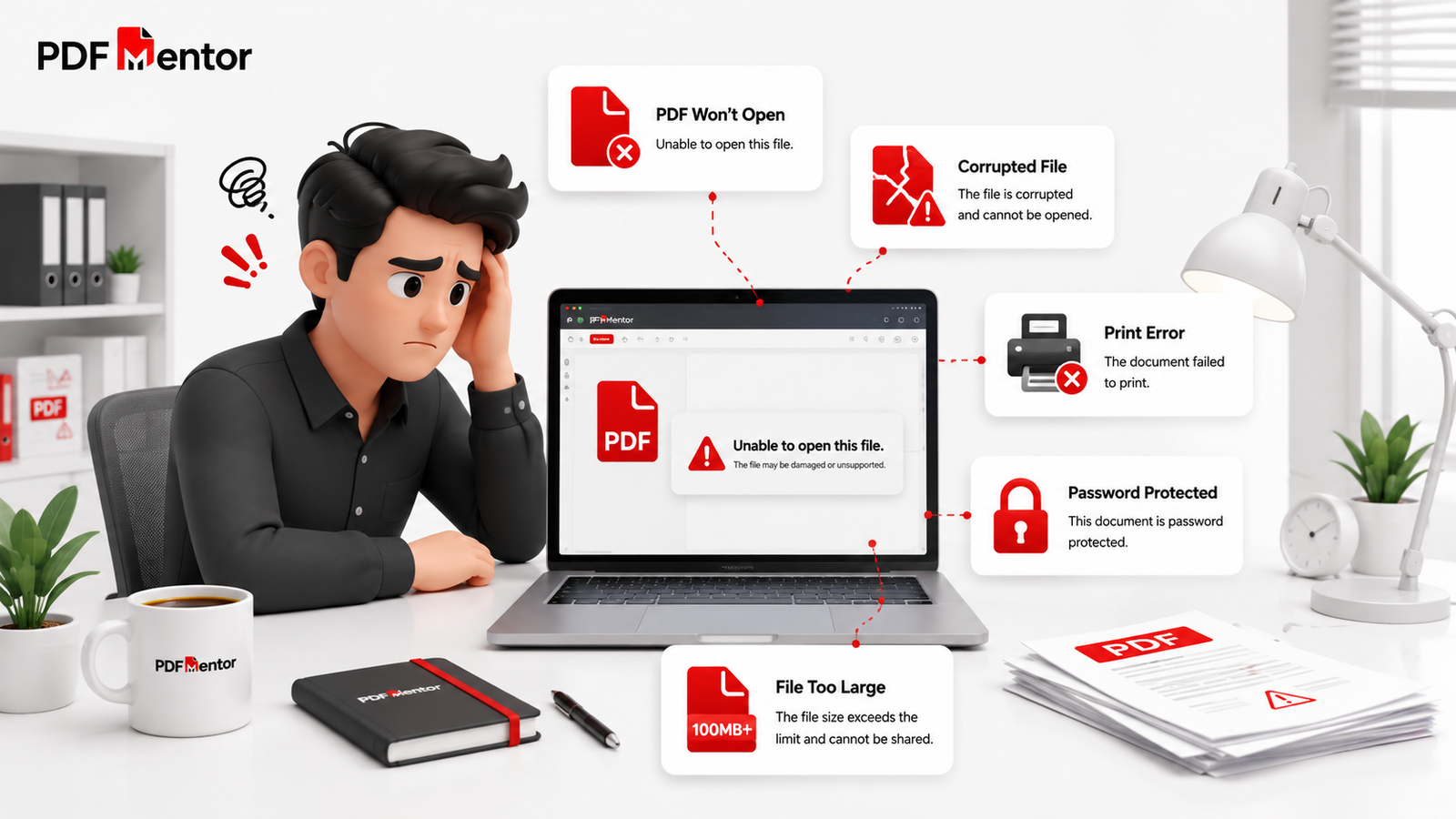
Although PDF files are highly reliable, they aren’t completely free from problems. For example, a document may refuse to open, fail to print correctly, become corrupted after downloading, display missing fonts, or grow too large to email. As a result, these issues can interrupt your workflow, delay important tasks, and create unnecessary frustration, especially when you’re working with time-sensitive documents.
Fortunately, most PDF problems are much easier to fix than they first appear. In many situations, you don’t need advanced technical knowledge or expensive software to solve them. Instead, understanding the root cause and following a few proven troubleshooting steps is usually enough to restore your documents and prevent the same issue from happening again.
In this comprehensive guide, we’ll explain the most common PDF problems, their causes, and the most effective solutions. You’ll also learn practical tips to keep your PDF files secure, accessible, and optimized for everyday use.
If you’re new to PDFs and want to understand how they work before troubleshooting common issues, start with our Complete PDF Beginner’s Guide.
Key Takeaways
Before we dive into the details, here are the most important points you’ll learn from this guide:
- Most PDF problems can be fixed without recreating the document.
- Outdated software, corrupted downloads, and compatibility issues are the most common causes of PDF errors.
- Regular software updates and proper file management help prevent future PDF problems.
- Compressing, repairing, or converting a PDF often resolves common issues.
- Using trusted PDF tools reduces the risk of file corruption and security concerns.
- Understanding PDF best practices saves time and protects important documents.
Table of Contents
- Why PDF Problems Happen
- Most Common PDF Problems and Solutions
- PDF Troubleshooting Checklist
- Best Practices to Prevent PDF Issues
- Frequently Asked Questions
- Final Thoughts
Why Do PDF Problems Happen?
PDF files are designed to preserve formatting and provide a consistent viewing experience across different devices. Unlike editable document formats, PDFs package text, images, fonts, and layouts into a single file, making them highly reliable for sharing and printing.
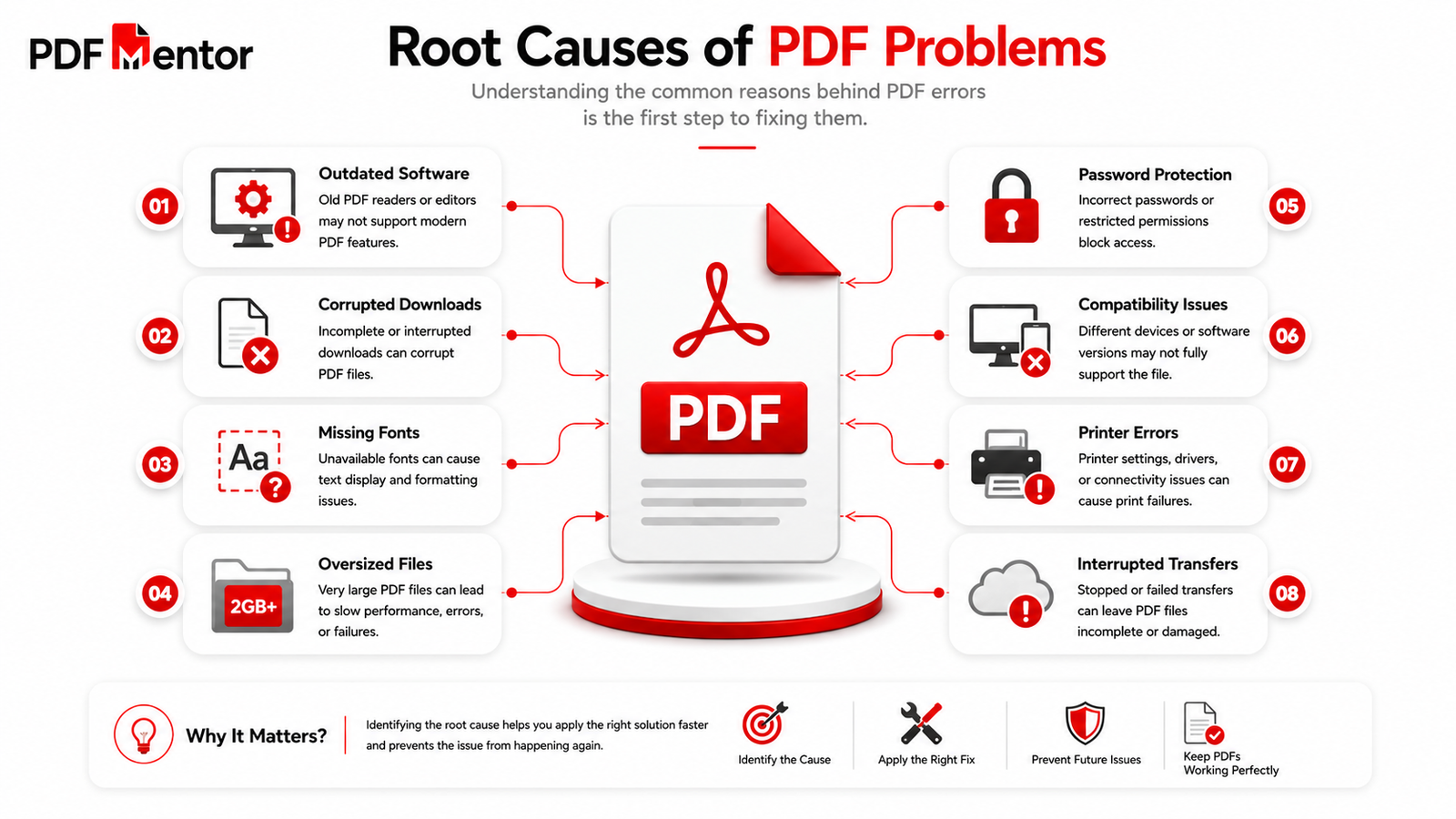
Even so, several factors can affect how a PDF behaves. Sometimes, the issue originates within the file itself. In other situations, outdated software, hardware limitations, or simple user mistakes are responsible for the problem. Understanding these differences makes troubleshooting much easier.
Understanding the root cause is the first step toward finding the right solution.
The Most Common Reasons PDFs Stop Working
| Cause | How It Affects the PDF |
|---|---|
| Outdated PDF Reader | Files may fail to open or display incorrectly. |
| Corrupted Download | The document becomes unreadable or incomplete. |
| Interrupted File Transfer | Missing data can damage the PDF. |
| Password Protection | Users cannot open, copy, or edit the file without authorization. |
| Large File Size | PDFs become difficult to email, upload, or load quickly. |
| Missing Fonts | Text appears differently or becomes unreadable. |
| Printer Compatibility Issues | Documents fail to print correctly. |
| Unsupported PDF Features | Older software cannot display modern PDF elements. |
Most of these problems are temporary and can be resolved by updating your software, repairing the file, or using the appropriate PDF tool.
To better understand why PDFs remain one of the most dependable document formats despite these occasional issues, read our guide on the Benefits of PDF Files.
Are PDF Problems Common?
Yes. PDF problems are surprisingly common because documents are frequently created, edited, transferred, and opened on different devices and software platforms. Consequently, a file that works perfectly on one computer may behave differently on another if the software versions, operating systems, or settings are not the same.
For example:
- A business contract created in one PDF application may not display perfectly in an outdated reader.
- A scanned PDF containing high-resolution images may become too large to email.
- A password-protected report may prevent editing unless the correct permissions are available.
- A document downloaded over an unstable internet connection may become corrupted before it finishes downloading.
Fortunately, these situations rarely mean your document is permanently lost. In most cases, a simple troubleshooting step—such as downloading the file again, updating your PDF reader, or using a repair tool—can resolve the issue.
According to Adobe Acrobat, PDF technology is designed to preserve document integrity across platforms, but compatibility and software updates still play an important role in ensuring the best experience.
Before You Start Troubleshooting
Before trying advanced fixes, follow these quick checks. They often solve common PDF issues in just a few minutes.
Quick Checklist
- ✅ Confirm that the file downloaded completely.
- ✅ Check whether the file extension is .pdf.
- ✅ Restart your PDF reader.
- ✅ Update your PDF software to the latest version.
- ✅ Open the document in another PDF viewer or web browser.
- ✅ Restart your computer if applications become unresponsive.
- ✅ Verify that the file isn’t password-protected.
- ✅ Ensure your internet connection was stable during the download.
Completing these basic checks can save you significant time before moving on to more advanced troubleshooting methods.
💡 Pro Tip
If a PDF refuses to open after downloading, don’t immediately assume the file is corrupted. Many issues are caused by incomplete downloads or outdated PDF readers. Simply downloading the file again or updating your software often resolves the problem within minutes.
What’s Next?
In the next section, we’ll begin troubleshooting the 10 most common PDF problems, starting with:
- PDF won’t open
- Corrupted PDF files
- PDF won’t print
- PDF is too large
- Can’t edit a PDF
- Password-protected PDFs
- Missing fonts
- Blurry images
- Broken hyperlinks
- Slow-loading PDF files
Each problem will include:
- Why it happens
- Common causes
- Step-by-step solutions
- Prevention tips
- Internal links to related PDFMentor guides
- Authority references where relevant
10 Common PDF Problems and Their Solutions
Now that you understand why PDF problems occur, let’s look at the issues people face most often and how to solve them.
The solutions below are suitable for beginners, students, office workers, business professionals, and anyone who regularly works with PDF documents.
1. PDF Won’t Open
One of the most frustrating PDF problems is clicking on a document and finding that nothing happens. Sometimes you’ll see an error message such as “Cannot open PDF,” “Invalid PDF format,” or “File is damaged and could not be repaired.” In other cases, the application simply freezes or crashes.
This issue can happen with any PDF file, whether it was downloaded from a website, received as an email attachment, or transferred from another device.
Fortunately, a PDF that refuses to open isn’t necessarily damaged. In most cases, the issue is linked to outdated software, an incomplete download, or compatibility differences between PDF readers. Therefore, checking these common causes first can save both time and unnecessary frustration.
Why Won’t My PDF Open?
Several factors can prevent a PDF from opening correctly.
The most common causes include:
- The PDF file was not downloaded completely.
- Your PDF reader is outdated.
- The file became corrupted during transfer.
- The PDF was created using newer features that your software doesn’t support.
- The file extension was accidentally changed.
- The document is password protected.
How to Fix a PDF That Won’t Open
Try these solutions one by one.
Solution 1: Download the File Again
Incomplete downloads are one of the biggest reasons PDFs fail to open.
Delete the existing file and download it again from the original source. If you’re receiving the file by email, ask the sender to resend it.
Solution 2: Update Your PDF Reader
Older PDF software may not support newer PDF standards or security features.
Updating your PDF reader often fixes compatibility issues immediately.
According to Adobe Acrobat, using the latest version ensures the best compatibility with modern PDF documents.
Solution 3: Try Another PDF Viewer
Sometimes the file isn’t the problem—your software is.
Try opening the PDF using another trusted application or even your web browser.
Many browsers such as Google Chrome, Microsoft Edge, and Mozilla Firefox include built-in PDF viewers.
Solution 4: Check the File Extension
A genuine PDF should end with: .pdf
If the extension has been changed accidentally, the operating system may not recognize it as a PDF document.
Solution 5: Restart Your Device
If your PDF application becomes unresponsive, simply restarting your computer can resolve temporary software conflicts.
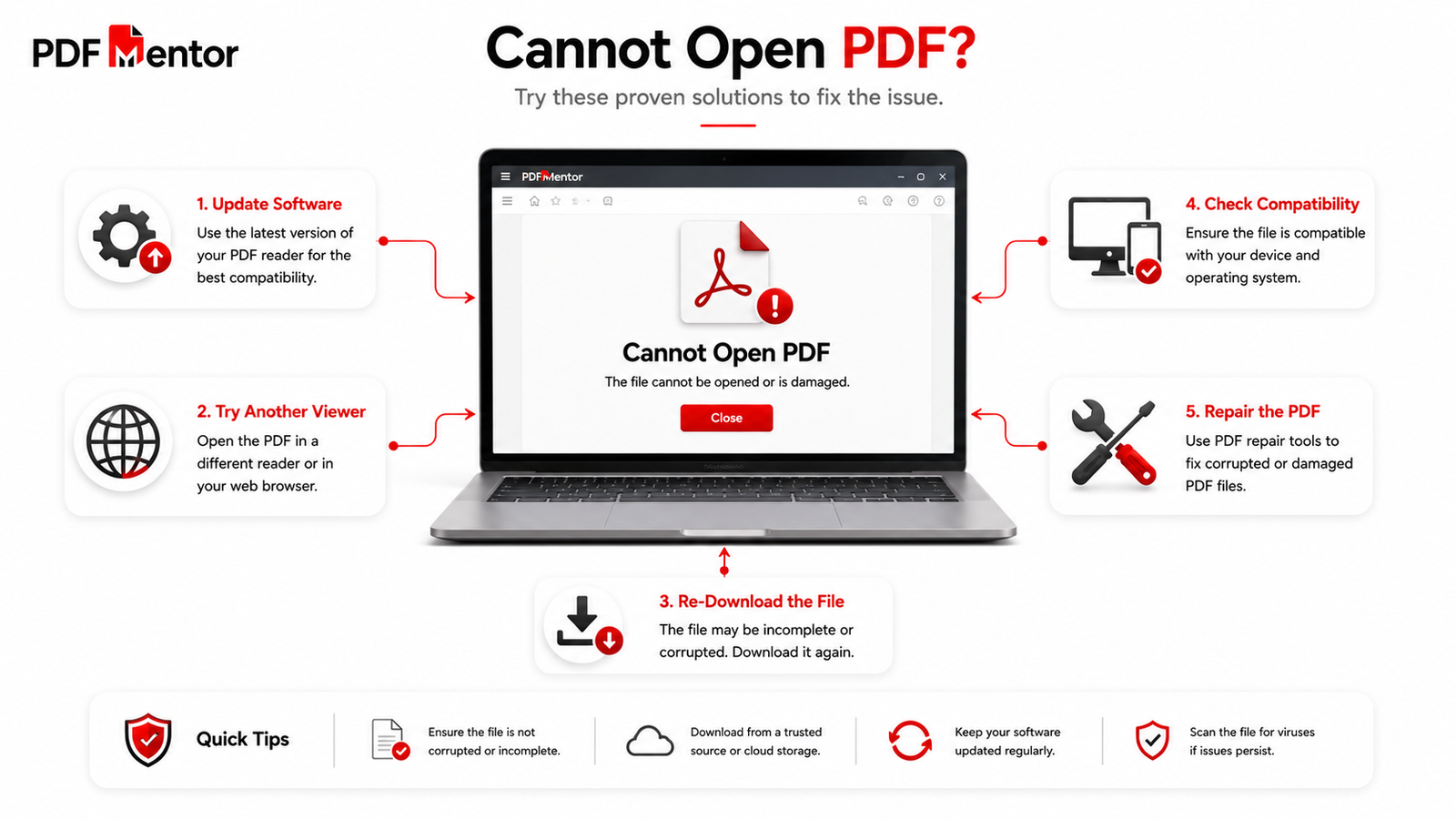
Quick Fix Summary
| Problem | Solution |
|---|---|
| PDF won’t open | Download the file again |
| Reader crashes | Update the PDF software |
| Unsupported version | Try another PDF viewer |
| Unknown file type | Check the .pdf extension |
| Temporary software issue | Restart your computer |
💡 Pro Tip
If a PDF opens successfully in your browser but not in your desktop application, the issue is almost always with your PDF reader—not the document itself.
If you’re still learning how PDF files work, our guide on What Is a PDF File? explains the technology behind the format and why compatibility matters.
2. PDF File Is Corrupted
A corrupted PDF is another common issue that can prevent you from accessing important documents.
When a PDF becomes corrupted, you may notice:
- Blank pages
- Missing images
- Missing text
- Error messages
- The document closes unexpectedly
- The file refuses to open completely
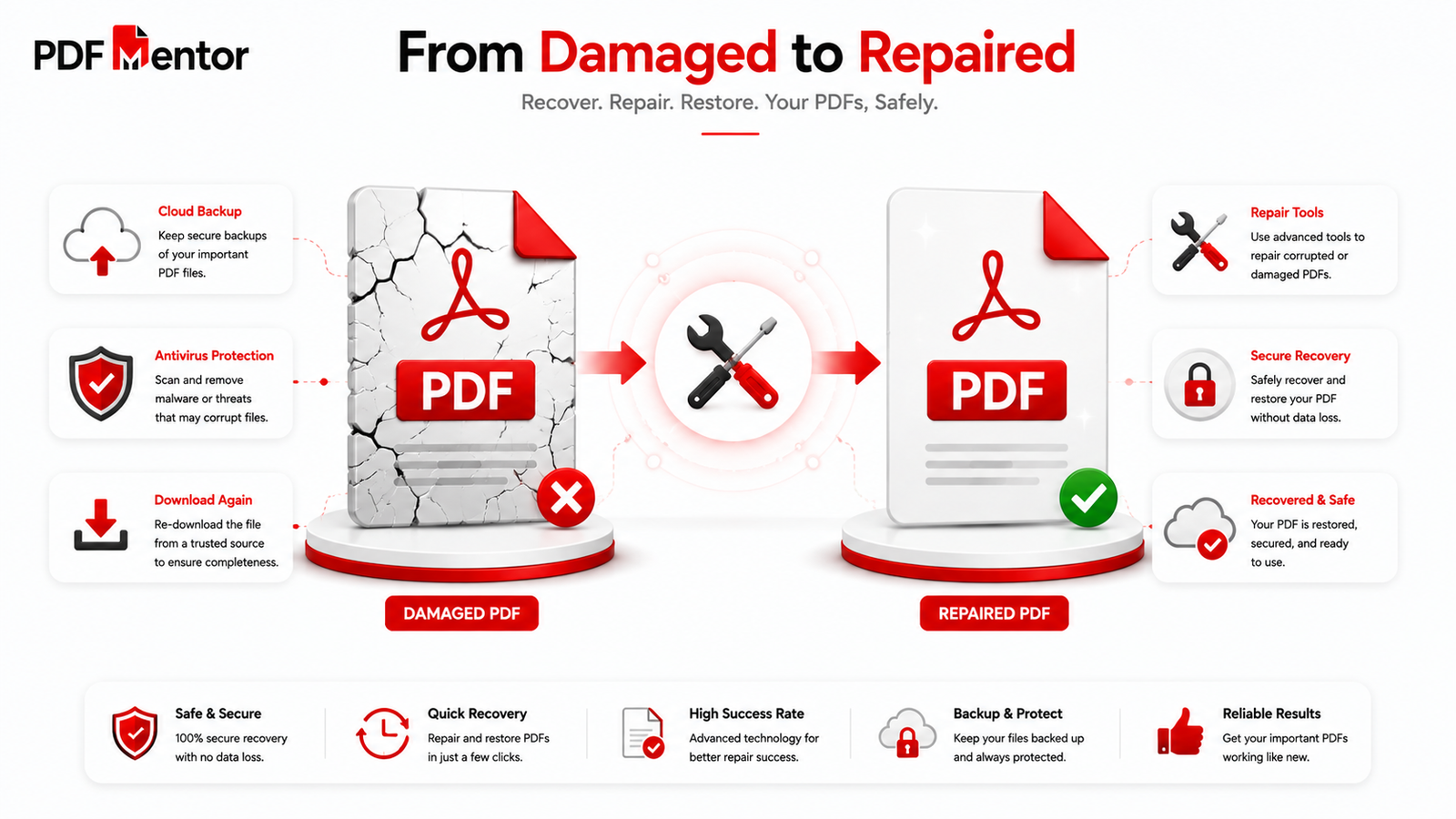
Although corruption may sound serious, it doesn’t always mean the document has been permanently lost. Fortunately, many corrupted PDFs can still be recovered by downloading a fresh copy, restoring a backup, or using a trusted repair tool.
What Causes PDF Corruption?
PDF files usually become corrupted because something interrupted the file while it was being created, transferred, or stored.
Common reasons include:
- Interrupted downloads
- Sudden power failures
- Hard drive errors
- USB storage problems
- Virus or malware infections
- Email attachment corruption
- Unexpected software crashes
How to Repair a Corrupted PDF
Download a Fresh Copy
If the PDF came from a website or cloud storage, download it again.
Many corrupted files are simply incomplete downloads.
Restore a Backup
If the document is important, restore an earlier version from your backup system.
Cloud storage platforms often keep previous file versions.
Use a Trusted PDF Repair Tool
Several reputable PDF repair tools can recover damaged documents.
Always use trusted software and avoid unknown websites that request sensitive files.
Contact the Sender
If someone emailed the document to you, ask them to send a fresh copy.
The original file on their computer may still be perfectly intact.
Scan for Malware
If the PDF came from an unknown source, scan your device before opening it again.
Malicious files sometimes imitate damaged PDFs.
Warning
Never upload confidential business documents to unknown PDF repair websites.
If the PDF contains legal contracts, financial information, medical records, or personal data, always verify the provider’s privacy policy before uploading the file.
Corrupted PDF Recovery Checklist
| Recovery Method | Success Rate |
|---|---|
| Download Again | ⭐⭐⭐⭐⭐ |
| Restore Backup | ⭐⭐⭐⭐⭐ |
| Ask Sender for Original | ⭐⭐⭐⭐⭐ |
| PDF Repair Software | ⭐⭐⭐⭐ |
| Manual Recovery | ⭐⭐⭐ |
If your document contains valuable information, understanding the best practices for PDF security can help prevent corruption and accidental data loss in the future.
3. PDF Won’t Print
Another issue many users experience is opening a PDF successfully but being unable to print it.
Sometimes nothing happens when you press Print, while other times only blank pages come out or the formatting looks completely different from what appears on your screen.
Printing problems are usually related to software settings, printer drivers, or the PDF itself.
Common Reasons PDFs Don’t Print
- Outdated printer drivers
- Corrupted PDF document
- Embedded font issues
- Very large image files
- Incorrect printer settings
- Insufficient printer memory
How to Fix Printing Problems
Restart the Printer
Turn the printer off, wait a few seconds, and restart it.
This clears temporary printing errors.
Update Printer Drivers
Manufacturers regularly release updated drivers that improve compatibility with modern PDF files.
Print as an Image
Most PDF readers include a Print as Image option.
This converts the page into a printable image, solving many font and rendering problems.
Save a New Copy
Choose Save As and create a fresh copy before printing.
Sometimes rewriting the PDF fixes hidden structural errors.
Try Another Printer
If possible, test the same PDF on another printer.
This quickly tells you whether the problem is with the document or your hardware.
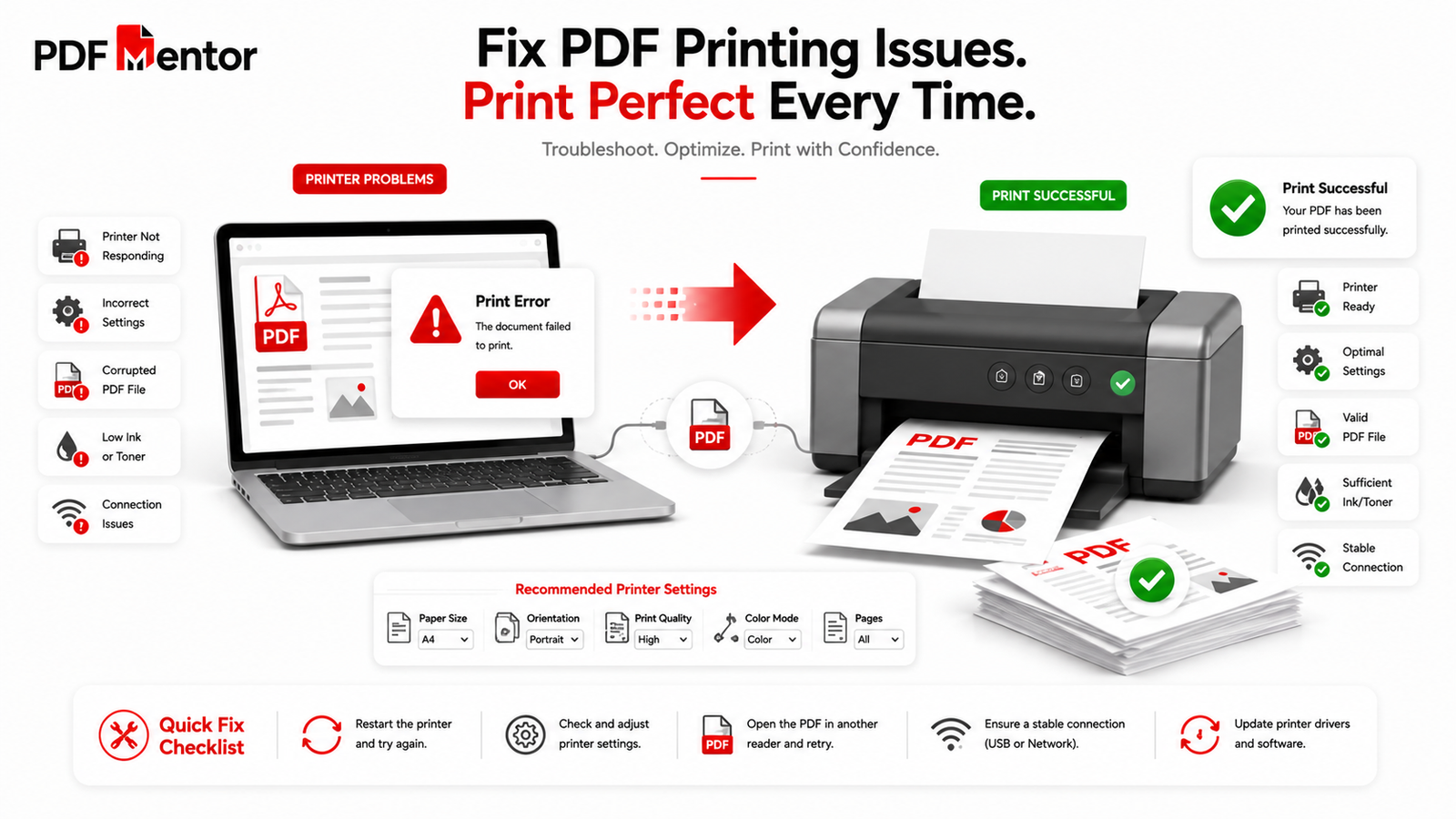
Printing Troubleshooting Table
| Printing Issue | Recommended Fix |
|---|---|
| Blank pages | Print as Image |
| Wrong fonts | Update PDF Reader |
| Printer freezes | Restart Printer |
| Nothing prints | Update Drivers |
| Slow printing | Compress the PDF |
If your PDF contains many large images, learning how to compress a PDF without losing quality can improve printing performance and reduce processing time.
4. PDF File Is Too Large
Large PDF files are one of the most common challenges for students, businesses, and professionals.
Oversized documents take longer to upload, are difficult to email, consume more storage space, and may even exceed the file size limits of online forms and cloud services.
Fortunately, reducing a PDF’s size is often simple without noticeably affecting quality.
Why PDFs Become So Large
Large PDF files are usually caused by:
- High-resolution images
- Scanned documents
- Embedded fonts
- Multiple graphics
- Interactive elements
- Unoptimized file settings
For example, scanning a document at 600 DPI instead of 300 DPI can dramatically increase the file size while providing little visible improvement for everyday viewing.
How to Reduce PDF File Size
Compress the PDF
Compression removes unnecessary data while preserving the document’s appearance.
For most everyday documents, this is the fastest and safest solution.
Reduce Image Resolution
If the PDF contains photos or scanned pages, lowering the image resolution can significantly reduce the file size without making the document difficult to read.
Remove Unnecessary Pages
Deleting blank pages, duplicate pages, or unused attachments can further reduce the overall file size.
Optimize Embedded Resources
Many PDF applications include an optimization feature that removes redundant fonts, metadata, and unused objects from the document.
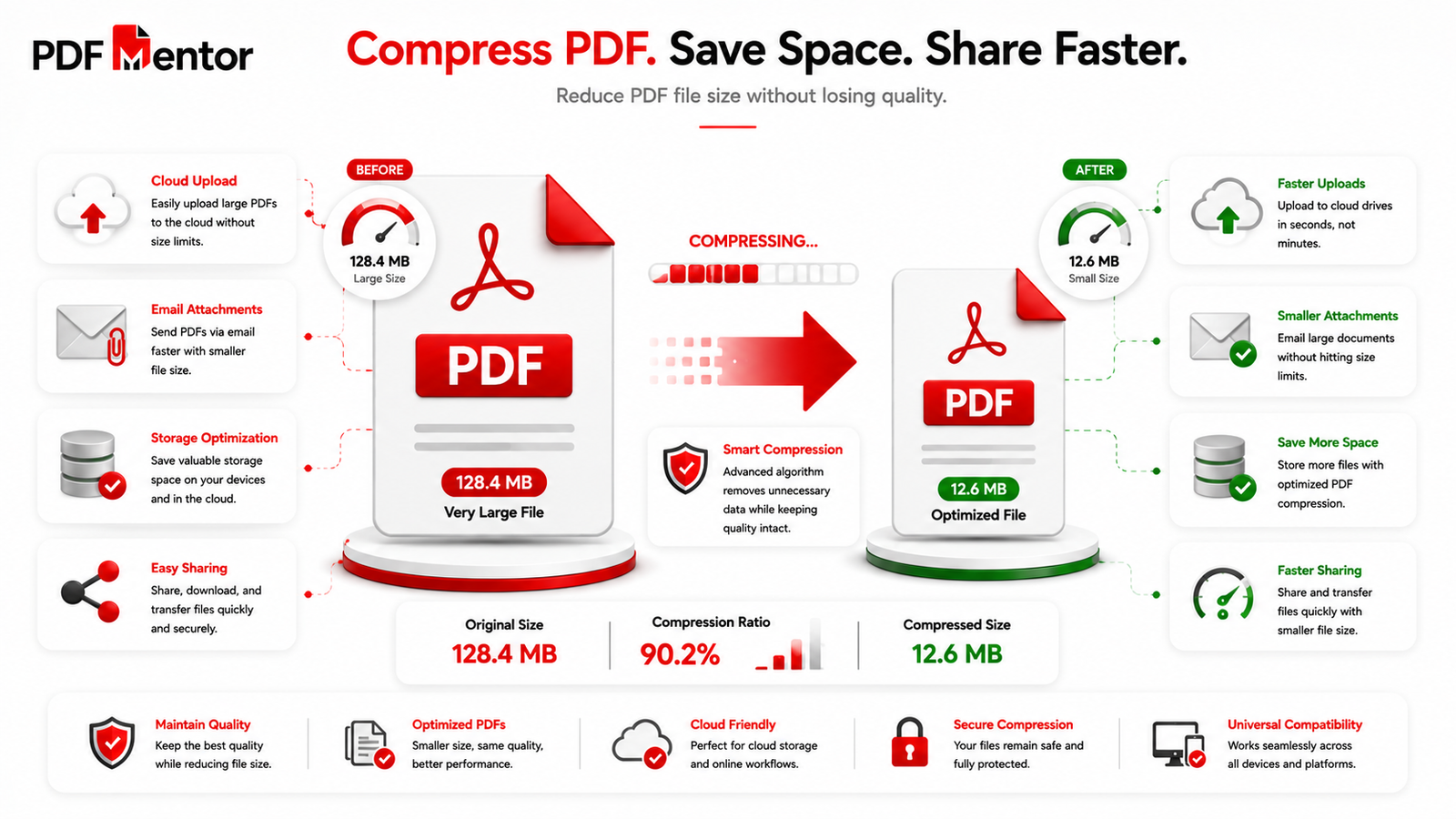
File Size Optimization Comparison
| Method | Expected Size Reduction |
|---|---|
| Compress PDF | High |
| Reduce Image Resolution | High |
| Remove Extra Pages | Medium |
| Optimize Resources | Medium |
| Recreate the PDF | Low to Medium |
If you frequently work with large documents, our upcoming guides on How to Compress a PDF Without Losing Quality and How to Reduce PDF File Size provide step-by-step methods for shrinking PDFs while preserving readability.
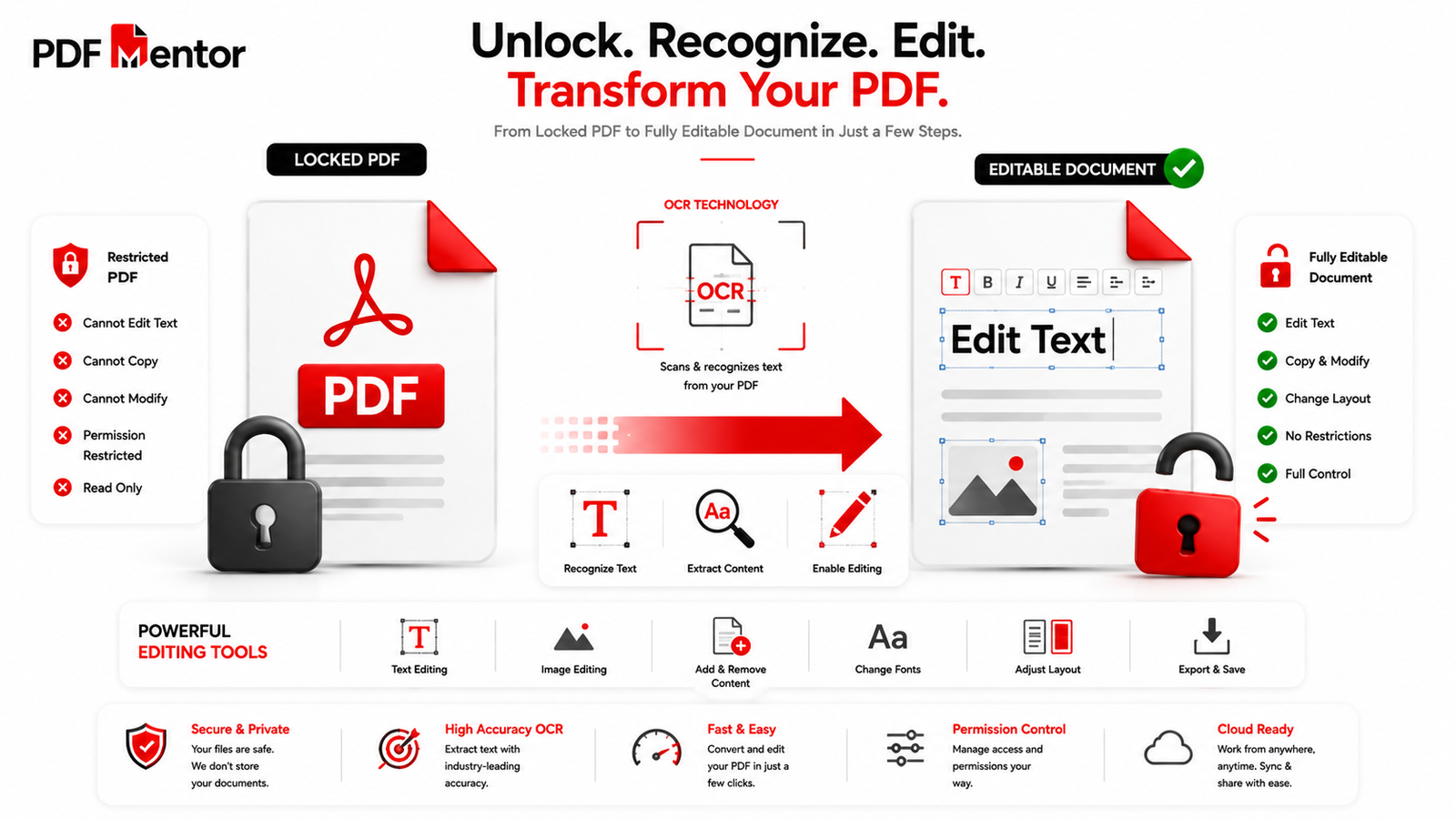
5. Can’t Edit a PDF
One of the biggest misconceptions about PDF files is that every PDF can be edited just like a Microsoft Word document. In reality, PDFs are primarily designed for viewing, sharing, and preserving document formatting, not for editing.
Many users become frustrated when they try to modify text, insert images, or rearrange pages, only to discover that the document is locked or behaves like a scanned image.
The inability to edit a PDF doesn’t always indicate a problem with the file. In many cases, it’s simply how the document was created.
If you’re wondering why your PDF isn’t editable, understanding the reason will help you choose the right solution.
Why Can’t I Edit My PDF?
There are several reasons why editing may not be possible.
The most common causes include:
- The document is password protected.
- Editing permissions have been disabled.
- The PDF was created as a read-only document.
- The file is actually a scanned image rather than editable text.
- You’re using a PDF reader instead of a PDF editor.
Many free PDF readers only allow viewing documents. Editing features are usually available in dedicated PDF editing software.
How to Edit a PDF Successfully
Use a PDF Editor
A PDF reader and a PDF editor are two different types of software.
A reader allows you to open and view documents, while an editor lets you modify text, images, annotations, links, and pages.
If your software doesn’t include editing tools, you’ll need to use a PDF editor.
Check Editing Permissions
Some PDF files include security settings that prevent editing.
Open the document properties to see whether editing has been restricted by the document owner.
If permissions are disabled, you’ll need authorization before making changes.
Convert Scanned PDFs Using OCR
If your document was scanned from paper, the text isn’t actually text—it’s an image.
Optical Character Recognition (OCR) converts scanned images into searchable and editable text.
Without OCR, editing individual words is impossible.
Request the Original File
Sometimes the easiest solution is asking the sender for the original Word document or editable source file.
Editing the original document is usually faster than modifying the PDF itself.
Common Editing Problems
| Editing Problem | Recommended Solution |
|---|---|
| Can’t type in PDF | Use a PDF editor |
| Text can’t be selected | Perform OCR |
| Editing disabled | Check document permissions |
| Images can’t be modified | Use editing software |
| Read-only PDF | Request editable version |
💡 Pro Tip
Before trying complicated workarounds, check whether you’re opening the document in a PDF reader instead of a PDF editor. This simple difference explains many editing problems.
If you’d like detailed instructions, read our complete guide on How to Edit a PDF, where we explain editing text, images, links, and pages step by step.
If your document is a scanned file, you’ll first need to understand the basics of PDF documents before attempting OCR or advanced editing.
6. Password-Protected PDF
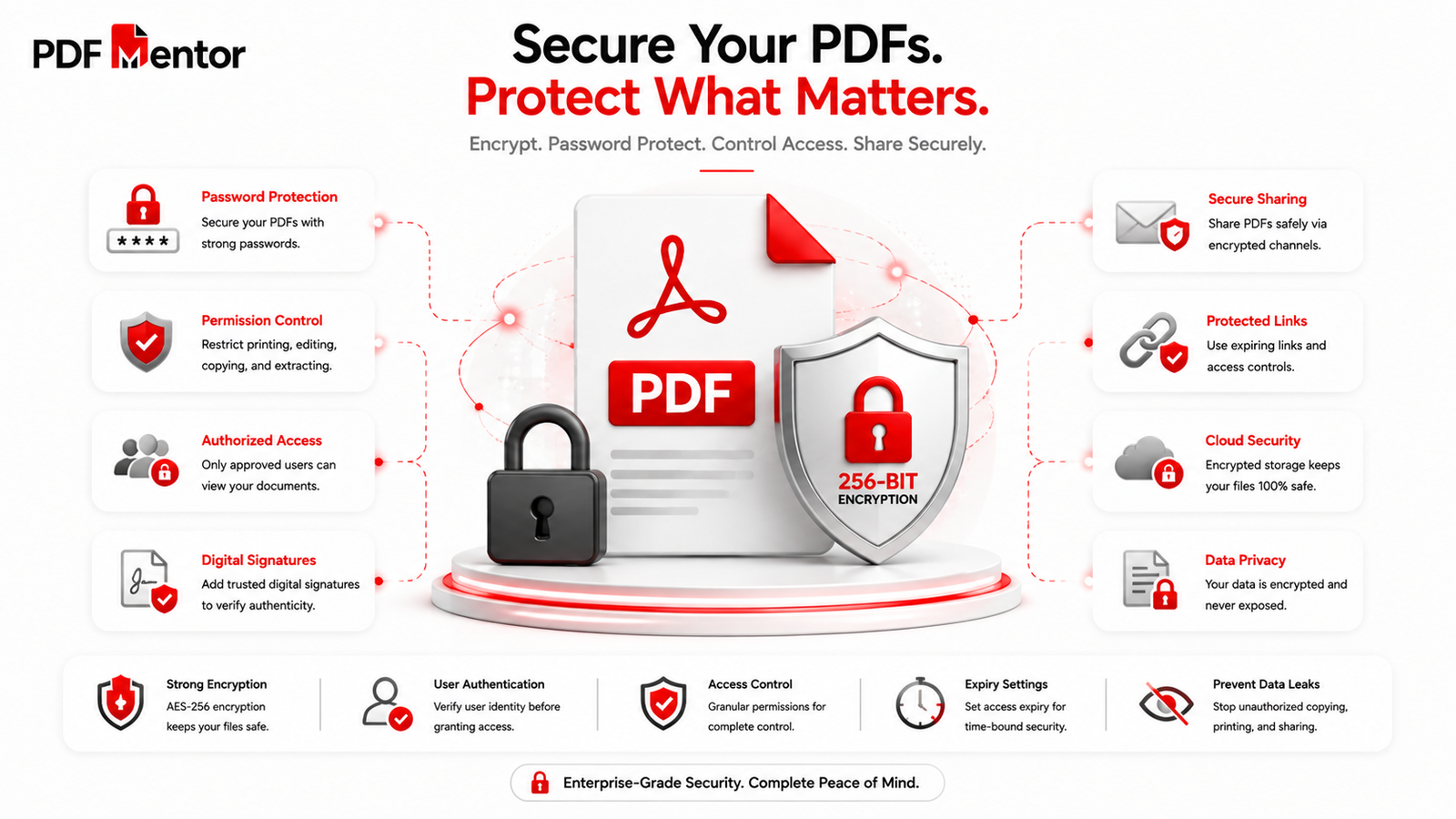
Password protection is one of the strongest security features of the PDF format. It prevents unauthorized users from opening, editing, copying, or printing confidential documents.
Businesses commonly use password protection for contracts, invoices, financial reports, legal documents, and personal records.
However, this security feature can quickly become frustrating if you’ve forgotten the password or received a protected file without the necessary permissions.
Why Is My PDF Password Protected?
A PDF may require a password because the document creator intentionally restricted access.
There are generally two types of PDF passwords:
Open Password
This password is required before anyone can view the document.
Without it, the PDF remains completely inaccessible.
Permission Password
This password allows users to open the document but restricts actions such as:
- Editing
- Printing
- Copying text
- Adding comments
- Extracting content
How to Access a Password-Protected PDF
Enter the Correct Password
Always try the password provided by the sender before attempting anything else.
Remember that passwords are case-sensitive.
Contact the Document Owner
If you don’t know the password, request it from the person who created or shared the file.
This is the safest and most reliable solution.
Remove Password Protection (With Permission)
If you own the document or have permission, many PDF applications allow you to remove password protection for easier future access.
Never remove security from documents you don’t own.
Store Passwords Securely
Using a password manager helps prevent future access problems while keeping sensitive documents protected.
Security Best Practices
| Best Practice | Why It Matters |
|---|---|
| Use strong passwords | Prevent unauthorized access |
| Share passwords separately | Improve document security |
| Use encryption | Protect sensitive data |
| Store passwords safely | Prevent accidental lockouts |
| Remove protection only when necessary | Reduce security risks |
According to the National Institute of Standards and Technology (NIST), strong password management and access controls remain essential for protecting sensitive digital documents.
For detailed instructions, read our complete guides on How to Password Protect a PDF and How to Unlock a Password-Protected PDF.
7. Missing Fonts or Incorrect Formatting
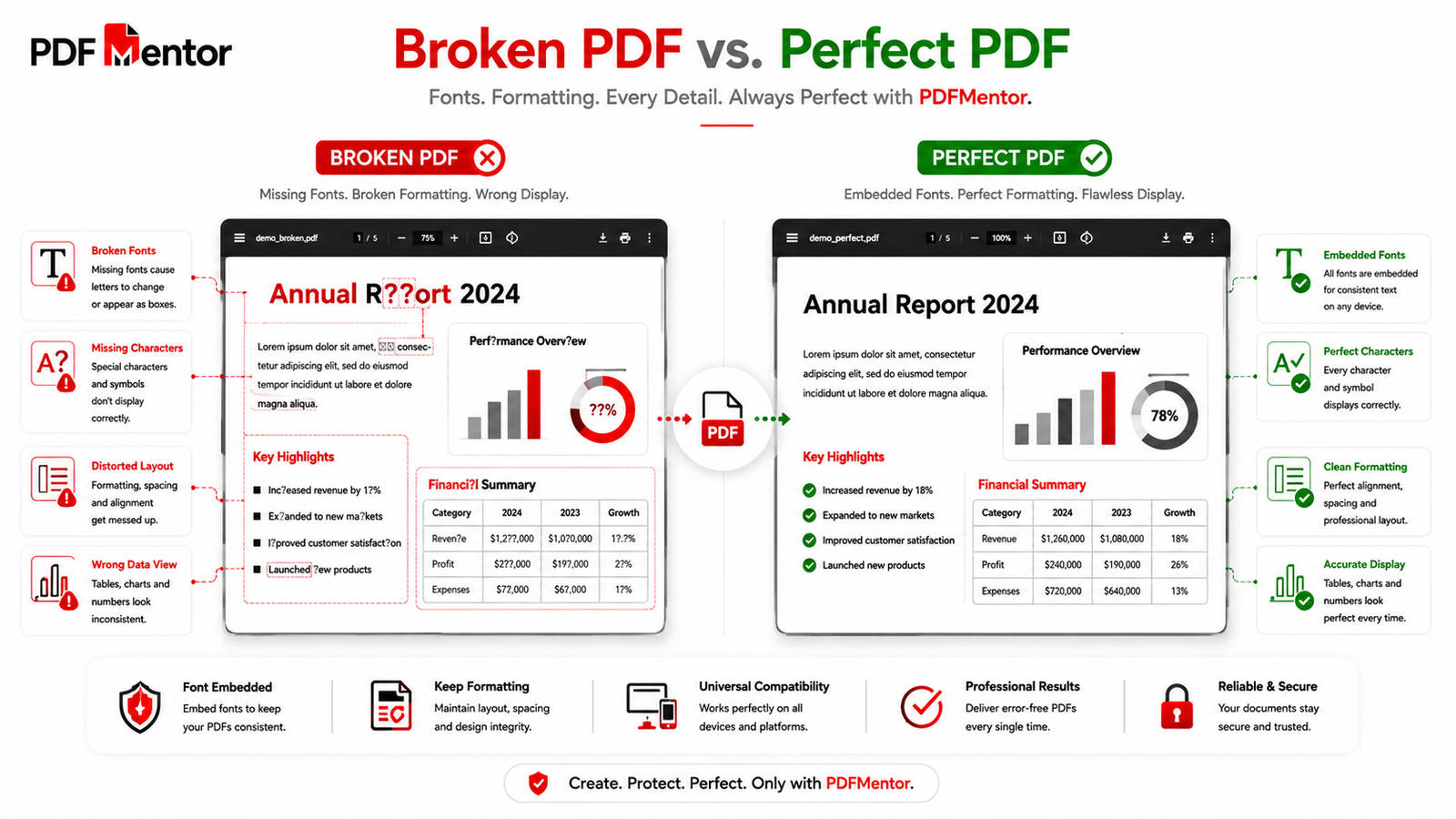
Have you ever opened a PDF only to discover that the text looks completely different from what the sender intended?
Maybe the font changed, spacing became inconsistent, or certain characters disappeared altogether.
This happens because the fonts used to create the document aren’t always available on the computer where the PDF is opened.
Although PDFs are designed to preserve formatting, missing fonts can still affect how some documents appear—especially if they weren’t exported correctly.
Why Do Fonts Change?
Common reasons include:
- Fonts weren’t embedded during PDF creation.
- Custom fonts aren’t installed on the viewing device.
- Older PDF software doesn’t fully support the document.
- The PDF became partially corrupted.
How to Fix Font Problems
Embed Fonts During Export
Most PDF creation software includes an option to embed fonts directly into the document.
This ensures the text appears correctly on any device.
Use Standard Fonts
Whenever possible, choose commonly supported fonts.
Standard fonts improve compatibility across operating systems.
Update Your PDF Reader
Modern PDF software provides better support for newer font technologies.
Keeping your application updated often resolves rendering problems.
Recreate the PDF
If you still have the original document, exporting a fresh PDF with embedded fonts usually fixes formatting issues permanently.
Font Troubleshooting Table
| Issue | Solution |
|---|---|
| Missing text | Embed fonts |
| Wrong font style | Use standard fonts |
| Broken formatting | Export PDF again |
| Symbols missing | Update PDF software |
| Character spacing issues | Recreate the PDF |
According to Adobe Acrobat, embedding fonts is one of the best ways to ensure consistent document appearance across different devices and operating systems.
💡 Pro Tip
If you’re creating professional documents such as resumes, contracts, or reports, always enable Embed Fonts before exporting to PDF. It prevents formatting surprises for the recipient and ensures your document looks exactly as intended.
8. Images Look Blurry or Low Quality
Have you ever opened a PDF only to find that the images look blurry, pixelated, or unclear?
This is a common issue, especially when PDFs contain scanned documents, compressed photos, or images that were originally saved in a low resolution. Poor image quality can make reports, brochures, presentations, and marketing materials look unprofessional.
Fortunately, blurry images are usually preventable if the PDF is created and optimized correctly.
Why Do Images Become Blurry?
Several factors can reduce image quality inside a PDF.
The most common reasons include:
- Low-resolution source images
- Excessive PDF compression
- Scanned documents saved at a low DPI
- Repeated conversions between different file formats
- Incorrect export settings
How to Fix Blurry Images in a PDF
Use High-Resolution Images
Always start with high-quality images before creating the PDF.
Low-resolution images cannot be improved later.
Reduce Compression
Many PDF tools offer different compression levels.
Choosing the highest compression may significantly reduce image quality.
If image clarity is important, select medium or high-quality compression instead.
Scan Documents at a Higher Resolution
For printed documents, scanning at 300 DPI is generally recommended for everyday use.
For professional printing, 600 DPI provides even better results.
Export Using Print Quality Settings
When creating a PDF, choose options such as:
- High Quality Print
- Press Quality
- Best Quality
These settings preserve more image detail.
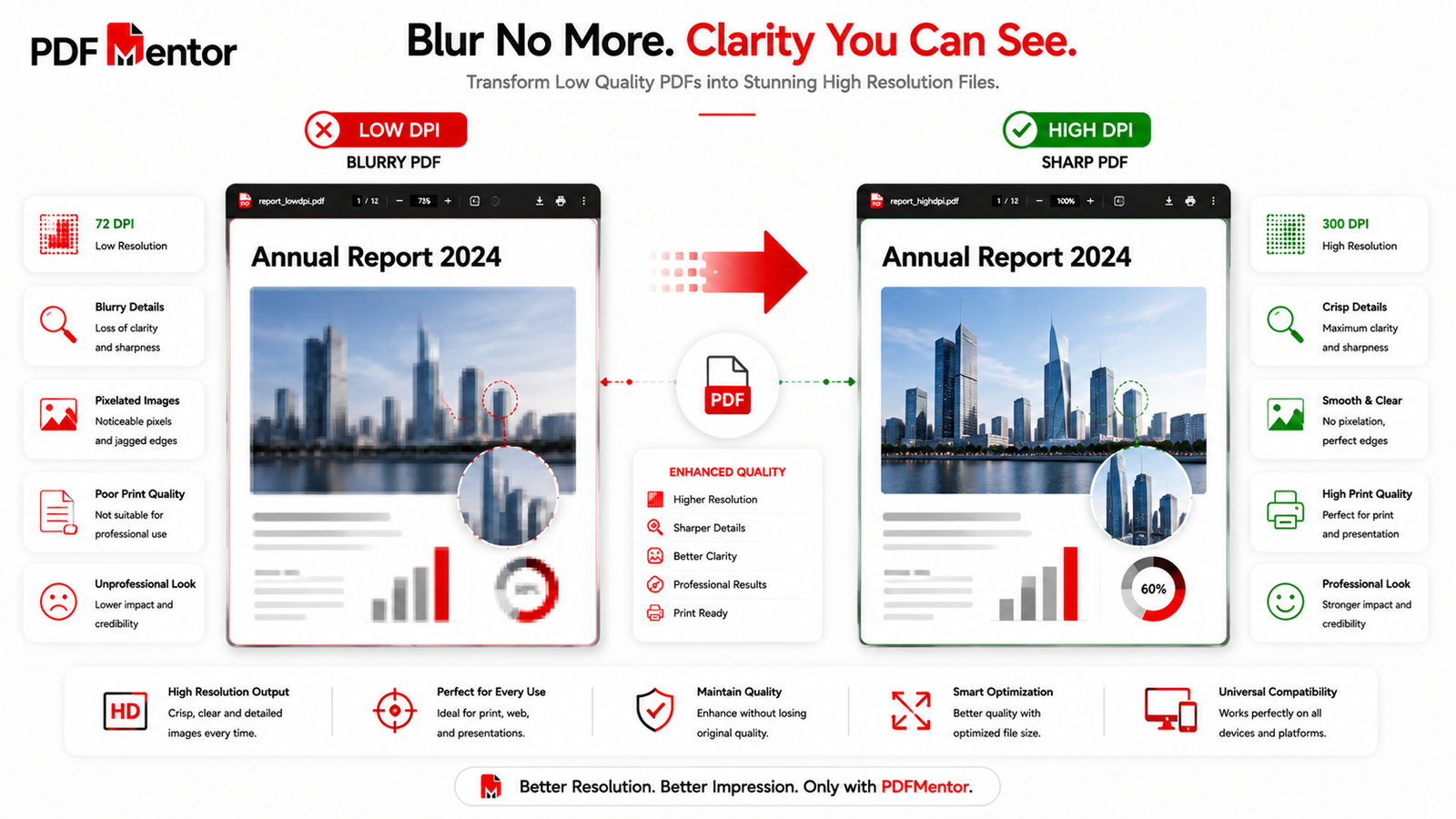
Image Quality Comparison
| Image Source | Result in PDF |
|---|---|
| Low Resolution | Blurry |
| High Resolution | Sharp |
| High Compression | Lower Quality |
| Optimized Compression | Balanced Quality |
| 300 DPI Scan | Excellent for Most Uses |
| 600 DPI Scan | Professional Printing |
If your document is too large after improving image quality, you can reduce its size without sacrificing readability by following our guide on How to Compress a PDF Without Losing Quality.
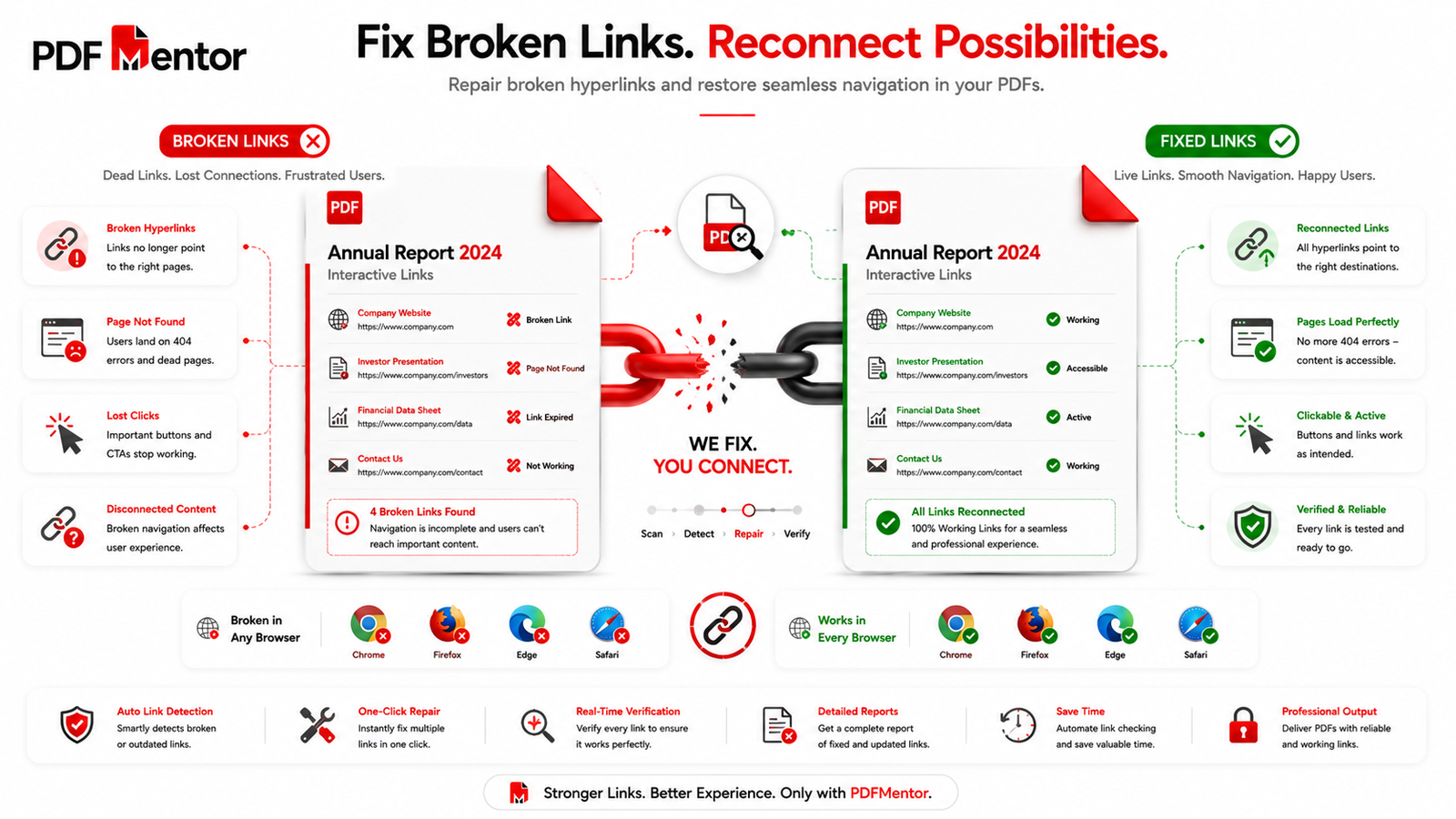
9. Hyperlinks Don’t Work
Interactive hyperlinks make PDFs much more useful by allowing readers to visit websites, navigate between pages, or jump to different sections of the document.
Sometimes, however, these links stop working after converting or editing a file.
Why Do PDF Links Break?
Broken hyperlinks usually occur because:
- The document was exported incorrectly.
- Links were removed during editing.
- The PDF reader doesn’t support interactive elements.
- URLs were entered incorrectly.
How to Fix Broken PDF Links
Verify Every Link Before Exporting
Always test hyperlinks in the original document before converting it to PDF.
Export Correctly
Most modern office applications preserve hyperlinks automatically if the correct PDF export option is selected.
Test the Final PDF
After creating the PDF, click every important hyperlink to ensure it works correctly.
This simple step helps avoid broken links before sharing the document.
Recreate Missing Links
If hyperlinks disappear after editing, reopen the original document, restore the links, and export the PDF again.
💡 Pro Tip
If your PDF includes important references, always test hyperlinks on both desktop and mobile devices before sharing the document.
According to Adobe Acrobat, interactive elements such as hyperlinks should be verified after exporting a document to ensure they function correctly across different PDF readers.
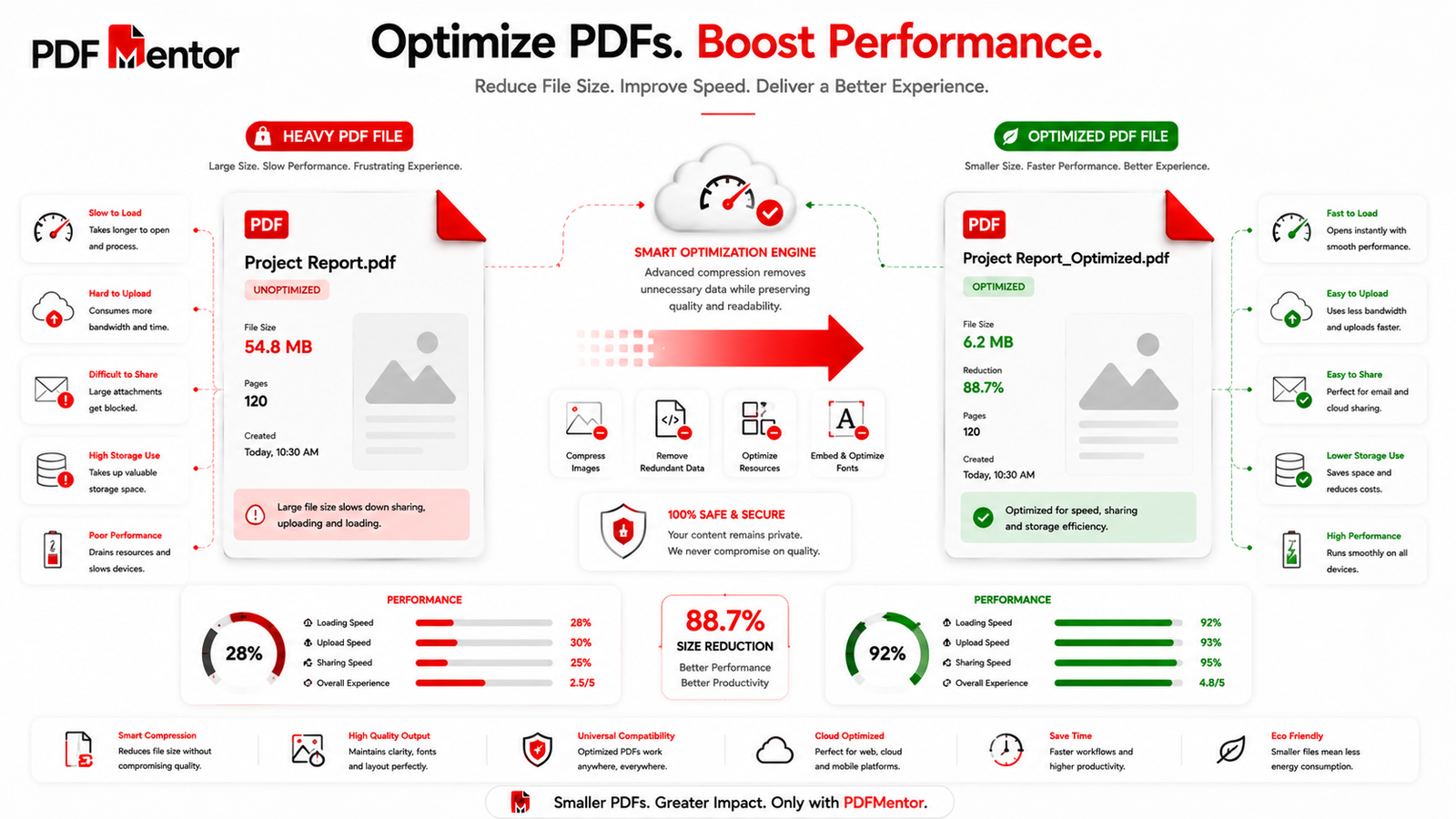
10. PDF Loads Very Slowly
Large PDF files with many pages, high-resolution images, interactive forms, or embedded multimedia may take a long time to open.
Slow-loading PDFs are particularly common on older computers and mobile devices.
Why Is My PDF So Slow?
Common causes include:
- Large file size
- High-resolution graphics
- Hundreds of pages
- Embedded videos or multimedia
- Outdated PDF software
- Low system memory
How to Speed Up a PDF
Compress the Document
Reducing unnecessary data decreases loading time.
Remove Unused Elements
Delete blank pages, duplicate pages, unused attachments, and unnecessary graphics.
Split Large PDFs
Instead of one massive file, divide the document into smaller PDFs.
Smaller files load much faster.
Update Your PDF Reader
Modern software includes better performance optimizations.
Complete PDF Troubleshooting Checklist
Before assuming your PDF is permanently damaged, go through this checklist.
- ✅ Download the file again.
- ✅ Update your PDF reader.
- ✅ Restart your computer.
- ✅ Try another PDF viewer.
- ✅ Check for password protection.
- ✅ Verify the file extension.
- ✅ Compress oversized files.
- ✅ Scan unknown files for malware.
- ✅ Print as an image if printing fails.
- ✅ Restore from backup if the file is corrupted.
📋 Quick Reference Table
| Problem | Best Solution |
|---|---|
| PDF won’t open | Download again or update the PDF reader |
| Corrupted PDF | Restore from backup or request a new copy |
| Won’t print | Print as an image or update printer drivers |
| Too large | Compress or optimize the PDF |
| Can’t edit | Use a PDF editor or OCR |
| Password protected | Enter the correct password or contact the owner |
| Missing fonts | Embed fonts and recreate the PDF |
| Blurry images | Use higher-resolution images |
| Broken hyperlinks | Test and recreate links |
| Slow loading | Compress or split the PDF |
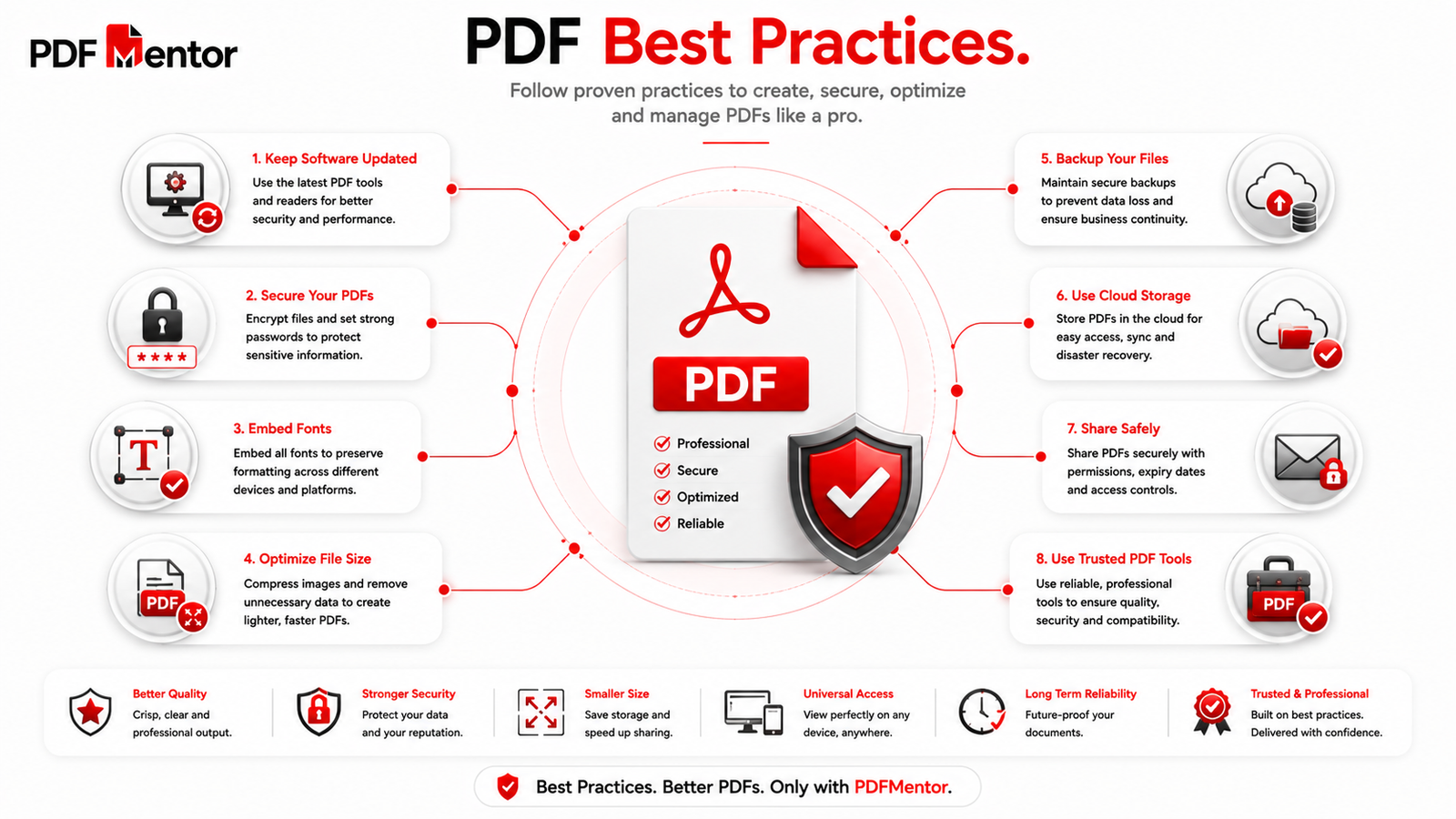
How to Prevent PDF Problems
Most PDF issues can be avoided by following a few simple best practices.
Keep Your Software Updated
Regular updates improve compatibility, security, and performance.
Download Files from Trusted Sources
Avoid downloading PDF documents from suspicious or unknown websites.
Back Up Important Documents
Store important PDFs in secure cloud storage or external backups.
Compress Large Files Before Sharing
Smaller PDFs upload, download, and email much more easily.
Embed Fonts
Embedding fonts ensures your document looks the same on every device.
Test Before Sending
Always review your PDF before sharing it with clients, colleagues, or customers.
Frequently Asked Questions (FAQs)
Why won’t my PDF open even though it downloaded successfully?
The file may be incompatible with your PDF reader, corrupted during transfer, or protected by security settings. Updating your software or trying another PDF viewer often solves the problem.
Can I repair a corrupted PDF?
Yes. Many corrupted PDFs can be recovered by downloading a fresh copy, restoring a backup, or using a trusted PDF repair application.
Why is my PDF so large?
High-resolution images, scanned pages, embedded fonts, and multimedia content usually increase file size.
Why can’t I edit my PDF?
The document may be password protected, read-only, or created from scanned images that require OCR before editing.
Is it safe to use online PDF tools?
Yes—but only if you choose reputable providers with strong privacy and security policies. Avoid uploading confidential documents to unknown websites.
Learn more in our upcoming guide on Is It Safe to Use Online PDF Tools?
Conclusion
Overall, PDF files remain one of the most reliable and widely used document formats available today. However, they can still present occasional challenges, such as files that won’t open, printing errors, blurry images, or oversized documents. Fortunately, most of these problems have straightforward solutions when you understand their underlying cause.
By understanding the root causes of these issues and following the troubleshooting steps in this guide, you can resolve common PDF problems quickly and keep your documents working smoothly.
Just as importantly, adopting best practices—such as keeping your software updated, embedding fonts, backing up important files, and using trusted PDF tools—can help prevent many of these problems before they occur.
The more familiar you become with working with PDFs, the easier it will be to create, edit, share, and protect your documents with confidence.
Continue Learning with PDFMentor
If you found this guide helpful, you may also enjoy these resources: